Getting Started
This page explains the first steps of using the simulation. It only covers the very basics of what’s happening behind the scenes.
Launch the Simulation
The next step is to start the actual simulation:
Launch the Simulation
roslaunch gazebo_simulation master.launch road:=<NAME_OF_ROAD>
Roads are defined as python scripts within simulation/models/env_db.
The default_road can be started without the road argument:
roslaunch gazebo_simulation master.launch
You should then see a road looking similar to the following:
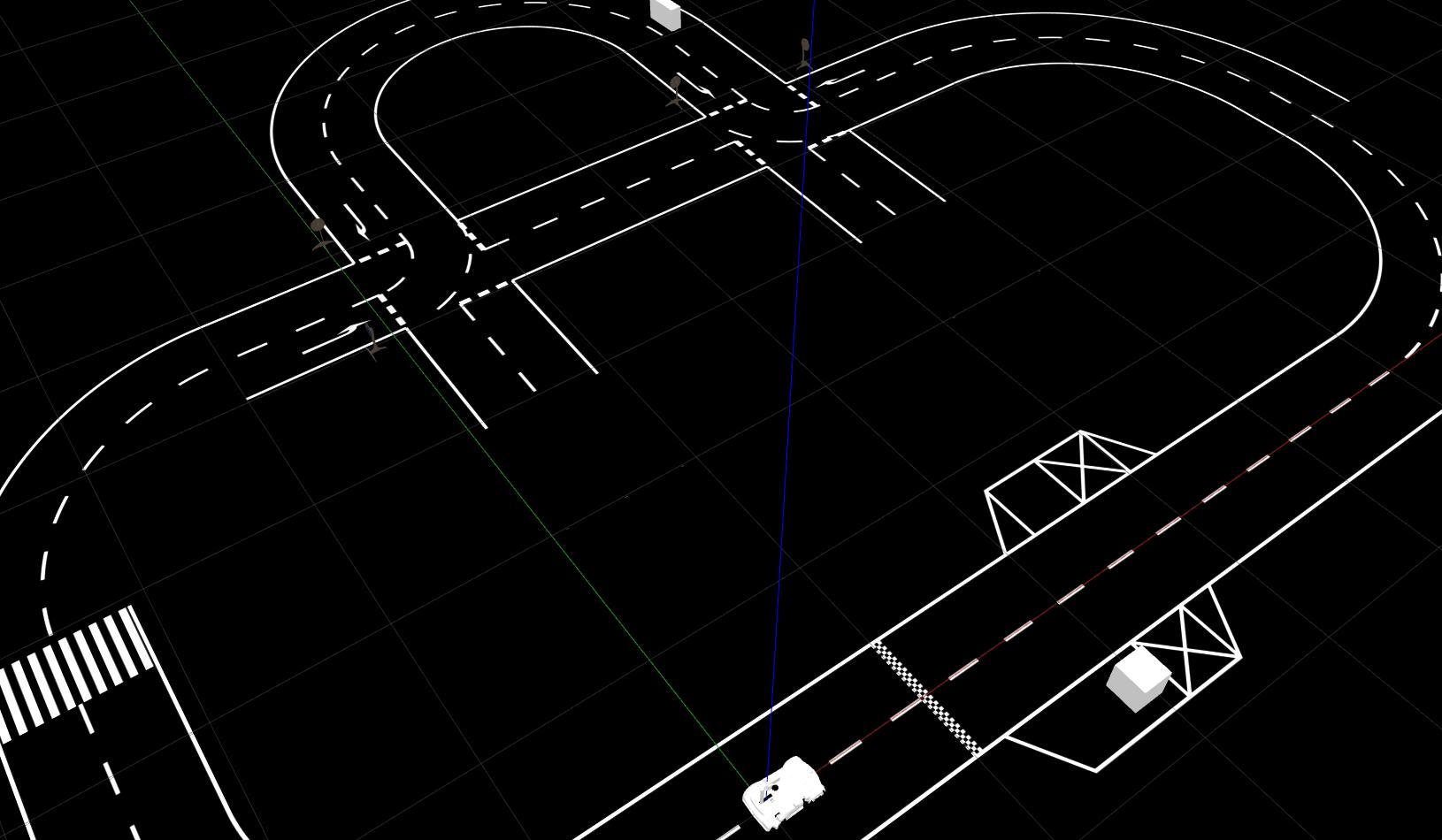
See master.launch for more details.
With kitcar-ros
If kitcar-ros is installed, the mission mode plugin should open as well. It can be used to choose a mission mode and tell the car to start driving.
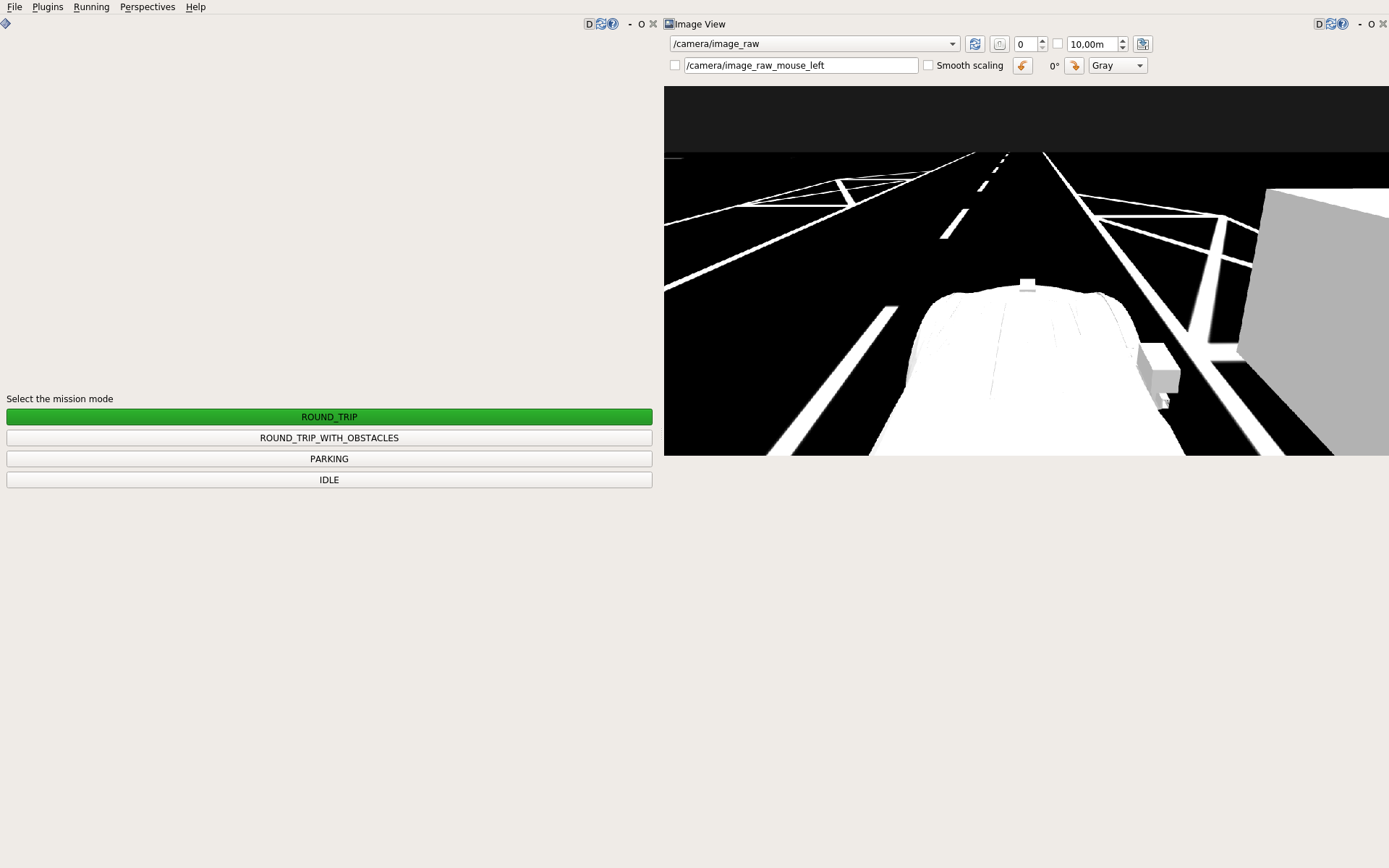
View of RQT with the mission mode plugin and image view.
Without kitcar-ros
Warning
If kitcar-ros is not installed, errors can occur if nodes are attempted to launch that are not installed. Passing the launch arguments include_brain:=false and include_vehicle_simulation:=false excludes all nodes that are in kitcar-ros:
roslaunch gazebo_simulation master.launch include_brain:=false include_vehicle_simulation:=false
Without kitcar-ros, i.e. KITcar_brain and the vehicle_simulation, the car can not start driving on its own. However, the AutomaticDriveNode can move the car on the right side of the road; effectively emulating the car’s driving.
It can be started with:
roslaunch gazebo_simulation master.launch include_automatic_drive:=true